Apache server

1. download apache from official website - https://www.apachelounge.com/download/
2. extract folder to d:\webserver\apache2.4
3. edit file d:\webserver\apache2.4\conf\httpd.conf
Define SRVROOT "d:\webserver\apache2.4"
4. open cmd go to d:\webserver\apache2.4\bin and run httpd -k install
5. type services.msc and run application apache2.4

PHP module
1. download php from official website - https://windows.php.net/qa/
2. extract folder to d:\webserver\php-8.2.0
3. add php in system environment setx path "%PATH%, d:\webserver\php" /M
4. edit file d:\webserver\apache2.4\conf\httpd.conf
PHPIniDir "d:/webserver/php-8.2.0"
AddHandler application/x-httpd-php .php
LoadModule php_module "d:/webserver/php-8.2.0/php8apache2_4.dll"
<IfModule dir_module>
    DirectoryIndex index.php
</IfModule>

4. Rename php-ini-development.ini to php.ini.
5. create file in d:\webserver\apache2.4\htdocs\i.php

6. open browser to test http:\\localhost\i.php

Mysql server
1. download "mysql installer for windows" from official website - https://dev.mysql.com/downloads/mysql/
2. select setup type server only
3. select legacy authentication method
4. create user and password
5. run mysql through services.msc

PHPMyAdmin
1. download phpmyadmin from official website - https://www.phpmyadmin.net/downloads/
2. extract file to d:\webserver\apache2.4\htdocs\phpmyadmin
3. copy file d:\webserver\apache2.4\htdocs\phpmyadmin\config.sample.inc.php to config.inc.php
4. edit file d:\webserver\apache2.4\htdocs\phpmyadmin\config.inc.php
$cfg['blowfish_secret'] = 'n34uLaA3lvexVi6RaSG3T1BTna123m78'; /* YOU MUST FILL IN THIS FOR COOKIE AUTH! */
/* Authentication type */
$cfg['Servers'][$i]['user'] = 'root'; //mysql username here
$cfg['Servers'][$i]['password'] = 'password'; //mysql password here
5. edit file d:\webserver\php-8.2.0\php.ini
include_path = ".;D:\webserver\php-8.2.0\includes"
extension_dir = "d:\webserver\php-8.2.0\ext"
extension=php_mysqli.dll
extension=php_mbstring.dll
extension=php_pdo_mysql.dll
6. open browser to test http:\\localhost\phpmyadmin\
Wednesday, August 17, 2022
How to install apache, php, mysql and phpmyadmin on windows 10

Monday, January 24, 2022
How to reprogram Honda City 2003 FOB
1. Stand beside the door and hold both alarm and lock button of the remote.
2. The light will blink for awhile and then become constant lighting.
3. Press the alarm and then lock button and it will sync.
4. Mission Completion
Friday, December 11, 2020
How to remove program loading in Windows startup
There are several areas need to check which programs can load into Windows:
1. In the taskbar program startup
Check in C:\Users\(yourname)\AppData\Roaming\Microsoft\Windows\Start Menu\Programs\Startup
2. In registry, type regedit in cmd, and go to these keys below:
HKEY_LOCAL_MACHINE\Software\Microsoft\Windows\CurrentVersion\Run
HKEY_CURRENT_USER\Software\Microsoft\Windows\CurrentVersion\Run
HKEY_LOCAL_MACHINE\Software\Microsoft\Windows\CurrentVersion\RunOnce
HKEY_CURRENT_USER\Software\Microsoft\Windows\CurrentVersion\RunOnce
3. Other areas in registry, either find individually or type msconfig in cmd
Go to Startup tab, and uncheck those unwanted programs
4. In task scheduler, type taskschd in cmd
Disable or delete those programs that loads during startup
5. Run HijackThis
Do system scan and delete those programs loading during startup
Open Misc Tools section, Generate StartupList log to check lists of programs loading in Windows
Sunday, December 23, 2018
Things to know about your Xbox 360 JTAG stuff
Location to store your game
HDD:\Content\0000000000000000\(gameID)
Use xm360 to unlock your XBLA game or DLC if you can't play it
Location to store your DLC files
HDD:\Content\0000000000000000\(gameID)\00000002\
Location to store your Title Update file
HDD:\Content\0000000000000000\(gameID)\000B0000\
If your xbox360 keep crashing, then try clearing the Xbox 360 system cache:
1. Press the Guide button on your controller, then go to Settings, and select System Settings.
2. Select Storage or Memory.
3. Highlight any storage device, and then after that press Y on your controller. ( It doesn't matter which storage device you selected)
4. Select Clear System Cache.
5. When prompted to confirm storage device maintenance, press Yes.
Clearing the Xbox 360 System Cache DOESN'T remove any file or game content!
HDD:\Content\0000000000000000\(gameID)
Use xm360 to unlock your XBLA game or DLC if you can't play it
Location to store your DLC files
HDD:\Content\0000000000000000\(gameID)\00000002\
Location to store your Title Update file
HDD:\Content\0000000000000000\(gameID)\000B0000\
2. Select Storage or Memory.
3. Highlight any storage device, and then after that press Y on your controller. ( It doesn't matter which storage device you selected)
4. Select Clear System Cache.
5. When prompted to confirm storage device maintenance, press Yes.
Wednesday, May 8, 2013
How to hack Ironman 3 Gameloft Android
1. First root your phone.
2. Install Game Killer
3. Goto /data/data/com.gameloft.android.ANMP.GloftIMHM/files/ and delete all existing save files ie ironman3.sav, iron3safebackup.sav and backupSaveFile.dat
4. Run Game Killer in background.
5. Run Ironman3 game
6. When you see your Mark42 screen, open game killer and search for (press the magnifying glass) 160 (your current ISO-8), press the magnifying glass again and choose DWORD, then press + button
6A. Then just name another search and look for the experience as well as credit
7. Press back to play the game
8. After 1 mission try to get increase in ISO-8, experience and credit
9. Then open game killer and press the magnifying glass and search number increase
10. Find the matching number and EDIT them to whatever you want. Then press Modify & Lock.
11. At this stage you cant exit the game yet even if you press back you will not be allowed to exit. So, just hold your home button and go to task manager and kill the game.
12. Run ironman3 again to find your game with your new scores.
If you feel that the steps above is too complicated for you, then just download the file ironman3.sav below and paste it in /data/data/com.gameloft.android.ANMP.GloftIMHM/files/ by using ES File Explorer
http://www.2shared.com/file/aJlNL754/ironman3.html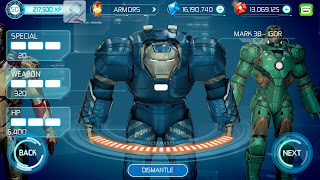
2. Install Game Killer
3. Goto /data/data/com.gameloft.android.ANMP.GloftIMHM/files/ and delete all existing save files ie ironman3.sav, iron3safebackup.sav and backupSaveFile.dat
4. Run Game Killer in background.
5. Run Ironman3 game
6. When you see your Mark42 screen, open game killer and search for (press the magnifying glass) 160 (your current ISO-8), press the magnifying glass again and choose DWORD, then press + button
6A. Then just name another search and look for the experience as well as credit
7. Press back to play the game
8. After 1 mission try to get increase in ISO-8, experience and credit
9. Then open game killer and press the magnifying glass and search number increase
10. Find the matching number and EDIT them to whatever you want. Then press Modify & Lock.
11. At this stage you cant exit the game yet even if you press back you will not be allowed to exit. So, just hold your home button and go to task manager and kill the game.
12. Run ironman3 again to find your game with your new scores.
If you feel that the steps above is too complicated for you, then just download the file ironman3.sav below and paste it in /data/data/com.gameloft.android.ANMP.GloftIMHM/files/ by using ES File Explorer
http://www.2shared.com/file/aJlNL754/ironman3.html
Friday, December 16, 2011
Tips and Shortcuts for Samsung SII
BRIGHTNESS CONTROL
With auto-brightness disabled, tap & hold on notification bar, then after a moment it becomes a horizontal brightness scroll bar.
ORGANIZING APP DRAWER
Organize the apps with folders. Tap Menu, then Edit.
UNINSTALL FROM APP DRAWER
Uninstall programs from the App Drawer. Tap menu, then Edit. Programs with '-' sign can be uninstalled from there, just tap.
BROWSER AGENT
Type 'about:useragent' in address bar and tap Go.
BROWSER SHOW TABS
Pinch inwards twice (i.e. zoom out) to display all open tabs
CAMERA ZOOM
In the camera app you can use the volume buttons to zoom in and out. OR you can pinch to zoom in and out.
DIAL CONTACT
Swipe right on contact name from the Contact list.
DIAL CONTACT
Swipe right on contact name from Messaging list
DIALLER
Start spelling out the name of the contact on the phone keys to avoid scrolling through the contact list
FAST SCROLLING
In a few apps such as YouTube, Astro File Manager, Market, etc. use 3 fingers to scroll much faster.
EMAIL GROUP BY DATE
In the inbox of the Samsung email app, you can pinch to zoom out to group all emails by date, then expand individual dates or zoom in to expand all again.
GOOGLE EASTER EGG
Go to Preferences, then About phone, then tap on Android version 5 times very fast. (it's a bit hit and miss)
HOMESCREEN DOCK APPS
To change, go to Applications, tap Menu then edit. Tap & hold to move. Only Home/App. cannot be moved.
HOMESCREEN SLIDER
The homescreen identifier dots double as a slider to scroll through your homescreens.
LOCK ACTIVE SCREEN
While watching videos, tap the power button to disable taps on the screen, the touch sensitive buttons and the home button.
MOVE HOMESCREENS
From view of all homescreens, tap and hold then rearrange.
PAN TO MOVE
This also works on the Application pages.
PINCH TO ZOOM - APP DRAWER
You can also use pinch to zoom on the app drawer.
PINCH TO ZOOM - BROWSER
Do it twice in a row (pinching inwards) in the browser as a shortcut to all open tabs.
PINCH TO ZOOM - HOME
On homescreen, zoom out and see all homescreens at once.
PINCH TO ZOOM - EMAIL
In the inbox of the Samsung email app, you can pinch to zoom out to group all emails by date, then expand individual dates or zoom in to expand all again.
RECENT PROGRAMS
Hold down the menu button to switch to a recent program or to access the task manager.
SAMSUNG KIES
To disable auto launch when you connect to PC via USB: enable USB debugging in Settings > Applications > Development.
SCREENSHOT
Press your home button and lock screen button (power button) at the same time to save a screenshot.
SCROLLING
You can scroll much faster on some apps such as YouTube, Astro File Manager and Market by using 3 fingers and if you scroll with 2 fingers you get precise scrolling (no scroll momentum).
SEARCH TOOL
Some Android phones have a dedicated search button, to access this tool press the Menu button and hold for a sec.
SEND TEXT
Swipe left on contact name from the contact list.
SHUTDOWN (FORCED)
Push & hold the power button and just keep holding. Probably takes about 7 secs.
TASK MANAGER
Hold down the home button to access recent programs and the task manager.
VOICE TALK
Quick access by double tapping home button (thanks Ryan)
WIDGET RESIZE
Tap and hold, then release without moving the widget location. Re-size tool appears. Does not work on all widgets. Works on: AccuWeather.com, Agenda (the first one), Ap Mobile, Bookmark, Email, Mini paper, and Picture frame.
ZOOM
In the camera app you can use the volume buttons to zoom in and out. OR you can pinch to zoom in and out.
With auto-brightness disabled, tap & hold on notification bar, then after a moment it becomes a horizontal brightness scroll bar.
ORGANIZING APP DRAWER
Organize the apps with folders. Tap Menu, then Edit.
UNINSTALL FROM APP DRAWER
Uninstall programs from the App Drawer. Tap menu, then Edit. Programs with '-' sign can be uninstalled from there, just tap.
BROWSER AGENT
Type 'about:useragent' in address bar and tap Go.
BROWSER SHOW TABS
Pinch inwards twice (i.e. zoom out) to display all open tabs
CAMERA ZOOM
In the camera app you can use the volume buttons to zoom in and out. OR you can pinch to zoom in and out.
DIAL CONTACT
Swipe right on contact name from the Contact list.
DIAL CONTACT
Swipe right on contact name from Messaging list
DIALLER
Start spelling out the name of the contact on the phone keys to avoid scrolling through the contact list
FAST SCROLLING
In a few apps such as YouTube, Astro File Manager, Market, etc. use 3 fingers to scroll much faster.
EMAIL GROUP BY DATE
In the inbox of the Samsung email app, you can pinch to zoom out to group all emails by date, then expand individual dates or zoom in to expand all again.
GOOGLE EASTER EGG
Go to Preferences, then About phone, then tap on Android version 5 times very fast. (it's a bit hit and miss)
HOMESCREEN DOCK APPS
To change, go to Applications, tap Menu then edit. Tap & hold to move. Only Home/App. cannot be moved.
HOMESCREEN SLIDER
The homescreen identifier dots double as a slider to scroll through your homescreens.
LOCK ACTIVE SCREEN
While watching videos, tap the power button to disable taps on the screen, the touch sensitive buttons and the home button.
MOVE HOMESCREENS
From view of all homescreens, tap and hold then rearrange.
PAN TO MOVE
This also works on the Application pages.
PINCH TO ZOOM - APP DRAWER
You can also use pinch to zoom on the app drawer.
PINCH TO ZOOM - BROWSER
Do it twice in a row (pinching inwards) in the browser as a shortcut to all open tabs.
PINCH TO ZOOM - HOME
On homescreen, zoom out and see all homescreens at once.
PINCH TO ZOOM - EMAIL
In the inbox of the Samsung email app, you can pinch to zoom out to group all emails by date, then expand individual dates or zoom in to expand all again.
RECENT PROGRAMS
Hold down the menu button to switch to a recent program or to access the task manager.
SAMSUNG KIES
To disable auto launch when you connect to PC via USB: enable USB debugging in Settings > Applications > Development.
SCREENSHOT
Press your home button and lock screen button (power button) at the same time to save a screenshot.
SCROLLING
You can scroll much faster on some apps such as YouTube, Astro File Manager and Market by using 3 fingers and if you scroll with 2 fingers you get precise scrolling (no scroll momentum).
SEARCH TOOL
Some Android phones have a dedicated search button, to access this tool press the Menu button and hold for a sec.
SEND TEXT
Swipe left on contact name from the contact list.
SHUTDOWN (FORCED)
Push & hold the power button and just keep holding. Probably takes about 7 secs.
TASK MANAGER
Hold down the home button to access recent programs and the task manager.
VOICE TALK
Quick access by double tapping home button (thanks Ryan)
WIDGET RESIZE
Tap and hold, then release without moving the widget location. Re-size tool appears. Does not work on all widgets. Works on: AccuWeather.com, Agenda (the first one), Ap Mobile, Bookmark, Email, Mini paper, and Picture frame.
ZOOM
In the camera app you can use the volume buttons to zoom in and out. OR you can pinch to zoom in and out.
Thursday, December 15, 2011
Personalizing your Samsung Galaxy SII
1. How to change the default sounds in SII?
i. You need to root your phone to do this. Read http://forum.xda-developers.com/showthread.php?t=1309293
ii. Get the Root Explorer apps to navigate into the system folders.
iii. Go to /system/media/audio/ui
iv. The following files are listed with its respective purposes:
2. Battery indicator
Download Battery Status Ultimate apps to have a numbered battery status for SII. Battery power left is shown in percentage form in top left hand corner for viewing.
3. Data status
Download Data Counter widget apps to notify on your network usages. Can be setup to monitor from different dates of the month so that matches your cell provider statement date.
4. CPU and Network monitor widget
Download SysStatLive apps to have a cool widget which actually isn't that accurate but present similar graphs like the Windows Task Manager.
i. You need to root your phone to do this. Read http://forum.xda-developers.com/showthread.php?t=1309293
ii. Get the Root Explorer apps to navigate into the system folders.
iii. Go to /system/media/audio/ui
iv. The following files are listed with its respective purposes:
- Charger_Connection.ogg - phone starting to charge
- Lock.ogg - phone lock
- TW_Low_Battery.ogg - low battery warning
- TW_Touch.ogg - default press button
- Unlock.ogg - phone unlock
2. Battery indicator
Download Battery Status Ultimate apps to have a numbered battery status for SII. Battery power left is shown in percentage form in top left hand corner for viewing.
3. Data status
Download Data Counter widget apps to notify on your network usages. Can be setup to monitor from different dates of the month so that matches your cell provider statement date.
4. CPU and Network monitor widget
Download SysStatLive apps to have a cool widget which actually isn't that accurate but present similar graphs like the Windows Task Manager.

Subscribe to:
Posts (Atom)
